
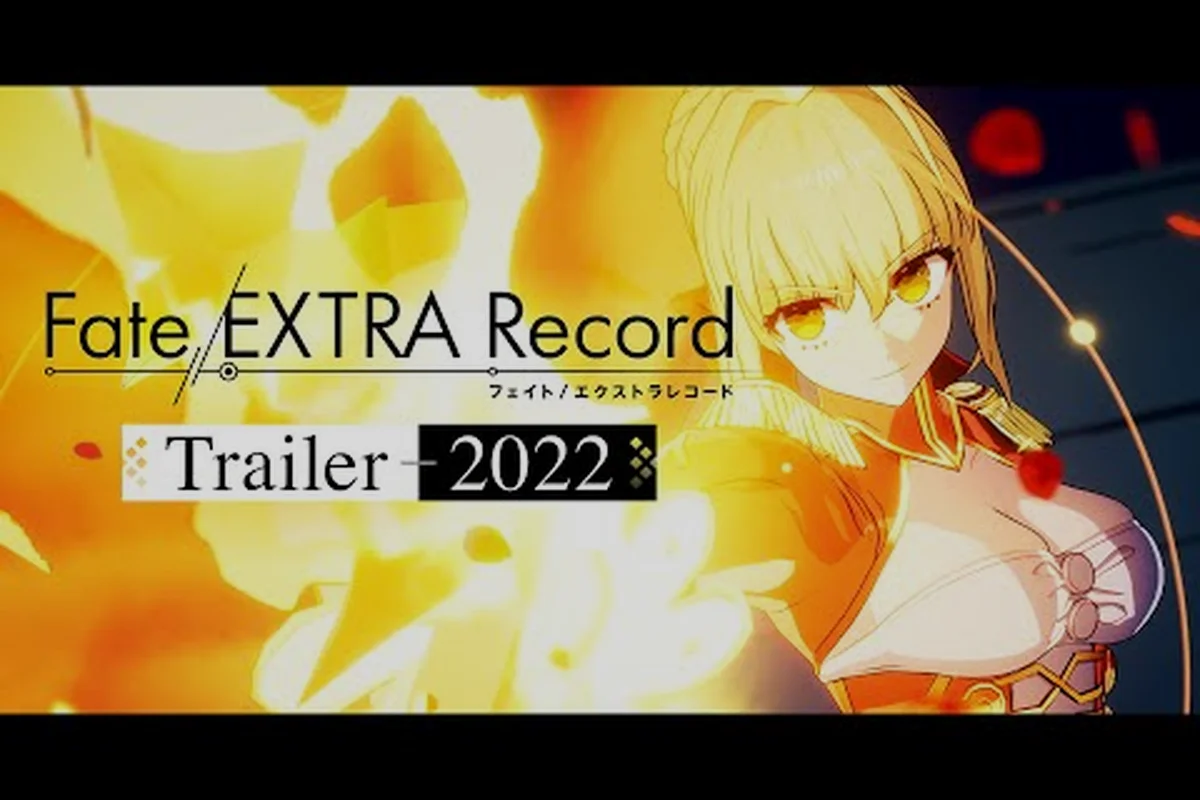
Tuning Fate/EXTRA Record best settings before your first dive into SE.RA.PH decides whether every Noble Phantasm lands with the cinematic weight TYPE-MOON intended. The game ships with nine supported languages, full Japanese voice acting, and a DirectX 12 rendering path that scales from modest laptops to high-refresh monitors, so a few minutes in the options menu translates directly into sharper dungeon corridors and tighter command-battle timing. This guide walks through the visual presets, audio toggles, language switches, and edition-specific extras that determine how the Moon Cell Holy Grail War actually feels on your hardware.
Visual Settings for PC, PS5, and Switch
Fate/EXTRA Record's visual stack runs on Unreal Engine and uses DirectX 12 as its only PC backend, so GPU choice matters more than raw CPU headroom. The official Steam listing confirms a 31 GB install footprint and a January 28, 2027 launch across PlayStation 5, PlayStation 4, Nintendo Switch, Nintendo Switch 2, and Steam, which means Switch players are working with a docked 1080p target while PC users can push well past 4K with the right card. Before touching any individual slider, confirm your driver is current, set the executable to high performance in your GPU control panel, and close background capture software that can silently cap your frame rate.
Resolution and Refresh Rate Targets
The single most important Fate/EXTRA Record best settings choice is matching your output to a display your panel can actually render. A 4K monitor with a mid-range GPU is often outperformed by a 1440p panel at high refresh because the engine spends less time shading invisible pixels. According to the Fate/EXTRA Record Steam store page, the build targets 60 FPS as the default ceiling on PC, but the configuration files expose unlocked frame rates for VRR and high-refresh displays.
| Target Display | Resolution | Expected FPS | GPU Class Suggested | Use Case |
|---|---|---|---|---|
| 1080p / 60Hz TV | 1920x1080 | 60 locked | GTX 1660 / RX 580 class | Switch 2 docked, base PS5 |
| 1440p / 144Hz | 2560x1440 | 60-144 | RTX 3070 / RX 6800 | Mid-range desktop PC |
| 4K / 60Hz | 3840x2160 | 60 locked | RTX 4080 / RX 7900 XT | High-end desktop PC |
| Ultrawide 3440x1440 | 3440x1440 | 60-120 | RTX 4070 Ti / RX 7900 | Sim-rig or workstation |
Graphics Preset Breakdown
The graphics menu offers four named presets plus a Custom slot that unlocks every toggle. Each preset bundles a specific combination of texture resolution, shadow filtering, post-process quality, and effects density so the game can adjust work-loads without you having to learn every variable. Players on hybrid GPUs should always force the dGPU through vendor control panels, because the iGPU path tends to under-allocate VRAM and trigger texture pop-in during the longer dungeon runs.
| Preset | Texture Quality | Shadows | Post-Process | Effects | Recommended For |
|---|---|---|---|---|---|
| Performance | Medium | Low | Low | Low | Switch, Steam Deck, older laptops |
| Balanced | High | Medium | Medium | Medium | GTX 1070 / RX 590 tier hardware |
| Quality | High | High | High | High | RTX 3060 / RX 6700 class and up |
| Cinematic | Ultra | Ultra | Ultra | Ultra | RTX 4070+ at 1440p or higher |
Individual Toggles That Matter Most
Below the preset list sits a row of advanced switches that, in community testing, disproportionately affect both frame pacing and image clarity. Anti-Aliasing TAA stabilizes the SE.RA.PH corridors but slightly softens distant textures, so players who dislike temporal blur usually switch to SMAA or disable AA entirely when sitting close to a 4K display. Volumetric Fog adds atmosphere to the Moon Cell's cathedral-like arenas but can stall frame time when stacked with high-resolution shadows, which is why most players cap it at Medium.
| Setting | Performance Cost | Visual Benefit | Suggested Value |
|---|---|---|---|
| Texture Streaming | Low | High | High or Ultra on 8GB+ VRAM |
| Shadow Resolution | High | Medium | Medium for 60 FPS targets |
| Anti-Aliasing | Low-Medium | High | TAA or SMAA based on taste |
| Volumetric Fog | High | Medium | Medium, Low on Switch |
| Bloom and Lens Flare | Low | Low-Medium | On for atmosphere, Off for clarity |
| Depth of Field | Low | Low | Off during command battles |
Audio Settings and the Japanese Voice Track
Fate/EXTRA Record ships with full Japanese voice acting across every story scene, dungeon encounter, and Noble Phantasm animation, which is the headline feature for any Fate fan arriving from the visual novel lineage. The audio menu exposes a Voice Language selector independent of the text language, so you can read English subtitles while keeping the original Japanese performances, or pair Japanese text with the Japanese cast for a fully native experience. Saber, Archer, and Caster all receive distinct voice direction that shifts based on your chosen Servant and the route you take through the Moon Cell.
Voice Language and Subtitle Pairings
The nine supported text languages include English, Japanese, Simplified Chinese, Traditional Chinese, Korean, French, German, Spanish, and Brazilian Portuguese, while voice acting remains exclusively Japanese across every region build. Players who need a second-screen experience can split the voice and subtitle languages, and the game remembers that pairing per profile. This is also where you confirm whether the digital deluxe voice pack is active, since that bonus is delivered as a separate audio resource that only loads if the entitlement is recognized.
| Voice Language | Subtitle Language | Best For | Notes |
|---|---|---|---|
| Japanese | English | First-time Fate players | Default pairing, recommended for newcomers |
| Japanese | Japanese | Visual novel purists | Full native experience |
| Japanese | Native language | Multilingual players | Use if reading in Korean, Chinese, or Spanish |
| Mute | Any text | Streamers and creators | Disables voice, keeps SFX and music |
Surround, Dynamic Range, and Voice Clarity
Beyond language, the audio menu exposes a surround virtualizer, a dynamic-range compressor, and individual sliders for Voice, Music, and Effects. Command battles layer three to five audio sources at once: the announcer call, your Servant's attack lines, enemy grunts, the background track, and environmental ambience, so boosting Voice relative to Music by roughly 4-6 dB makes Noble Phantasm callouts legible without muting the soundtrack. Players on stereo headsets should disable the surround virtualizer, because the binaural mix on those algorithms can blur positional audio cues during enemy ambushes.
| Audio Slider | Default | Recommended | Reason |
|---|---|---|---|
| Master Volume | 100% | 80-90% | Avoids clipping during boss attacks |
| Voice | 100% | 110-115% | Improves callout clarity |
| Music | 100% | 85-95% | Keeps OST present without overwhelming |
| Effects | 100% | 100% | Pacing relies on SFX cues |
| Dynamic Range | Off | On (night) / Off (day) | Useful for shared listening spaces |
Language Selection and the Fate/EXTRA Record Language Guide
The Fate/EXTRA Record language guide begins the moment you boot the game, because the title screen respects the language your platform region defaults to, and changing it after a save is created requires either a new profile or a manual config edit. Steam lets you override region defaults through the Properties → Language tab, while PlayStation and Switch users adjust through their console's system language, which is why most import players set their console to English first. The in-game language picker only swaps text and UI; voice acting never changes from Japanese regardless of which entry you pick.
First-Boot Language Checklist
The first launch walks you through a short avatar-creation screen before dropping you into the prologue, and it is during this brief window that the language picker is most accessible. Players who plan to play across multiple regions should create a separate user profile per language, because the in-game save data ties to the language active when the file was written. This is also where the Japanese audio toggle locks in, and you cannot switch voice languages mid-route without restarting the prologue, so set both values before confirming your Servant.
| Step | Action | Where | Why It Matters |
|---|---|---|---|
| 1 | Set console or Steam region language | System settings | Determines default boot language |
| 2 | Launch Fate/EXTRA Record | Title screen | Confirms language picker availability |
| 3 | Pick text language | Options → Language | Sets subtitle and UI text |
| 4 | Pick voice language | Options → Audio | Japanese audio guide requires this step |
| 5 | Confirm Servant and route | Prologue | Language locks into save file |
The Japanese Audio Guide in Practice
The Fate/EXTRA Record japanese audio guide focus is justified because the original cast returns from the 2010 PSP release, including Ayako Kawasumi as Saber and Tomokazu Seki as Archer, and the 2027 remaster adds new direction for the Caster route. Hearing original voice actors in familiar scenes is a major draw for long-time TYPE-MOON fans, which is why the developers prioritized keeping Japanese voice acting available across every regional build rather than outsourcing localization to a second studio. Players who enjoy the Japanese track should pair it with English subtitles for the smoothest comprehension curve.
Pre-Order Bonuses and the Digital Deluxe Edition
The Fate/EXTRA Record pre order guide matters because the title launches on January 28, 2027, and Aniplex has confirmed tiered rewards based on where and when you purchase. Pre-ordering the standard edition grants a cosmetic costume set and a starting item pack, while the digital deluxe edition layers in additional costumes, an exclusive Noble Phantasm animation, and a digital soundtrack. These bonuses are tied to your account rather than your save file, so they remain available across multiple playthroughs and New Game+ runs.
Pre-Order Tiers and What Each Includes
Pre-order windows typically close 48 hours before launch, so any player planning to claim a launch-edition bonus needs to commit before January 26, 2027. Aniplex has historically staggered rewards between platform storefronts, which is why checking each store's specific listing is worthwhile. The Fate/EXTRA Record digital deluxe guide breakdown below reflects the most commonly reported reward structure based on official pre-order pages, though the Fate/EXTRA Record official website confirms exact contents per region.
| Edition | Cost Tier | Cosmetics | Items | Extras |
|---|---|---|---|---|
| Standard | Base | None | None | Base game only |
| Standard Pre-Order | Base + pre-order | Costume set A | Starting item pack | Wallpaper DLC |
| Digital Deluxe | Premium | Costume set A + B | Starting item pack + crafting materials | OST, art book, exclusive animation |
| Digital Deluxe Pre-Order | Premium + pre-order | All above + bonus costume | All above + bonus items | Early unlock token |
Why the Digital Deluxe Is Worth Considering
The Fate/EXTRA Record digital deluxe guide is most relevant for players who intend to run multiple routes, because the bonus crafting materials shorten the grind between early-game and mid-game Servant upgrades. The exclusive Noble Phantasm animation is a cosmetic flair rather than a power boost, but it adds a layer of personalization to the command battle finishers that the standard edition lacks. Players on a tight budget should still pre-order the standard edition if the costume set appeals, since pre-order bonuses are time-locked and disappear once the launch window closes.
Accessibility, Controls, and Performance Tweaks
Fate/EXTRA Record exposes a wider set of accessibility toggles than most JRPG remasters, including remappable controls, subtitle scaling, color-blind filters, and a high-contrast UI mode. These toggles live in their own submenu under Options and persist per profile, so you do not need to reapply them between sessions. Pairing these with the right controller profile is the final piece of the Fate/EXTRA Record best settings puzzle, because command battles use a contextual input system that benefits from a controller with a responsive d-pad or a mouse with side buttons.
Controller and Keybinding Profiles
The default keybinds assume a PlayStation-style layout with the face buttons mapped to attack, defend, skill, and Noble Phantasm, but the rebinding menu exposes every input including menu navigation, dodge, and lock-on. Players switching between keyboard and controller mid-session need to confirm the active input device, because the game sometimes fails to swap automatically when both are connected. For a broader breakdown of how controller and mouse setups behave on Steam Deck and desktop, our graphics settings guide walks through the platform-specific quirks.
| Input Device | Best For | Recommended Binding Tweak |
|---|---|---|
| Xbox / PS controller | Couch play | Default mapping, no changes needed |
| Keyboard + mouse | Desktop play | Bind Noble Phantasm to mouse side button |
| Steam Deck | Handheld play | Lower preset to Balanced, enable VSync |
| Fight stick | Competitive play | Map face buttons to attack macros |
Accessibility Toggles Worth Turning On
Subtitle scaling has three size tiers and a background opacity slider, which together let players read dialogue even on a Switch 2 handheld screen where the default text can feel cramped. The high-contrast UI mode outlines menu elements in bright cyan, which is useful during the longer dungeon crawls when stamina is a real resource. Color-blind filters cover deuteranopia, protanopia, and tritanopia, and they affect both the minimap enemy highlights and the elemental weakness rings in command battles, so any player with a known color-variance condition should enable the matching filter before the first boss.
| Toggle | Default | Recommended | Why |
|---|---|---|---|
| Subtitle Scale | Medium | Large on handheld | Improves legibility |
| High-Contrast UI | Off | On for long sessions | Reduces eye strain |
| Color-Blind Filter | Off | Match personal profile | Clarifies enemy highlights |
| Camera Shake | On | Off for motion sensitivity | Prevents nausea |
| Auto-Advance Text | Off | On for visual novel fans | Speeds through dialogue |
Frequently Asked Questions
What are the Fate/EXTRA Record best settings for a mid-range PC?
Set the graphics preset to Balanced, lower Volumetric Fog to Medium, lock resolution to your panel's native pixel count, and cap frame rate at 60 unless you have a 144Hz monitor. This combination holds a stable 60 FPS on RTX 3060 and RX 6700 class hardware while preserving the SE.RA.PH atmosphere that makes the dungeons memorable.
How do I enable the Japanese voice track in Fate/EXTRA Record?
Open Options → Audio and select Japanese under Voice Language, which is independent from the text language selector. The Japanese audio guide applies across every region build, and the original cast from the 2010 PSP release returns for the 2027 remaster, so you get the canonical performances regardless of which text language you read in.
What does the Fate/EXTRA Record digital deluxe edition include?
The digital deluxe edition bundles the base game with two costume sets, an exclusive Noble Phantasm animation, a digital soundtrack, a digital art book, and bonus crafting materials that shorten the early-game grind. Pre-ordering the digital deluxe also grants an early unlock token that lets you start a second route before finishing the first, which is useful for players planning multiple playthroughs.
Is the pre-order bonus worth claiming for Fate/EXTRA Record?
Yes, because pre-order bonuses are time-locked and disappear after the launch window closes on January 26, 2027. The standard pre-order grants a costume set and a starting item pack, and the digital deluxe pre-order layers in additional cosmetics plus early unlock access, so any player who plans to play within the first month benefits from pre-ordering through their preferred storefront.
Can I change the text language after starting a save in Fate/EXTRA Record?
No, the text language locks into the save file the moment you confirm your Servant during the prologue, and switching mid-route requires a new profile or a manual config edit. Voice language can be swapped freely in the audio menu at any time, so the Japanese audio track remains accessible even if you committed to English text at the start.